Development
This section describes the engineering workflow for developing PCS PLC software in VS Code and deploying it into TIA Portal with Openness.
The current workflow is intentionally source-driven but non-destructive:
- PLC source files in this repository create or update matching TIA blocks and data types.
- Existing TIA objects that are not represented in the repository are left untouched.
- The same source tree can be deployed to one PLC or multiple PLC software targets.
Setup Paths
There are two supported ways to set up a PCS engineering workstation:
- Native host installation: the engineer manually installs TIA Portal V20, TIA Openness V20, VS Code, and Git on the host computer.
- Pre-configured VM: the engineer receives a Windows 11 VMware Workstation VM where TIA Portal V20, VS Code, and Git are already installed. The VM is not user-specific, so Git identity, GitHub authentication, repository access, and the PCS setup commands are still performed by the engineer.
Start with Windows Setup (1), continue with Git and Repository Setup, and then run Windows Setup (2).
Workflow Overview
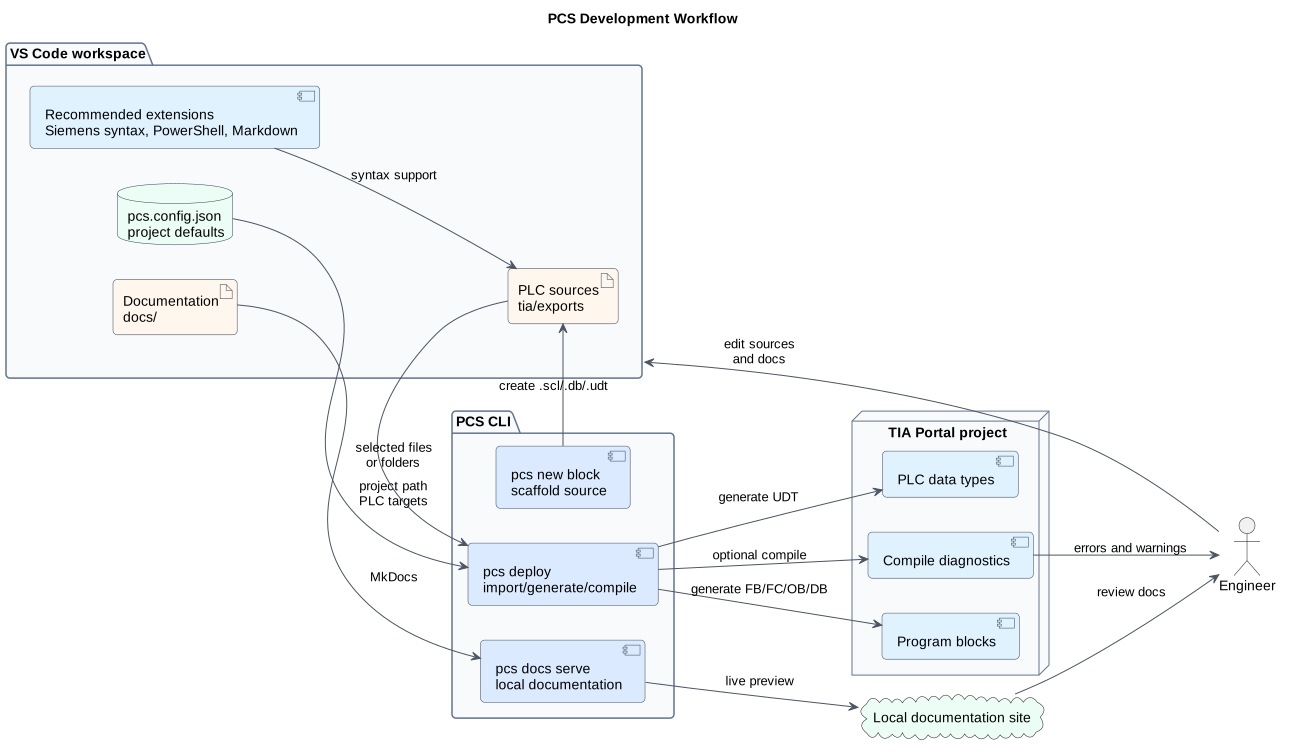
Read the development pages in order during first setup. The section starts with workstation preparation, then Git/repository access, then PCS tool bootstrap, and only then moves toward the first safe deployment check and daily workflow.
First-time setup order:
- Choose native host installation or pre-configured VM.
- Configure personal Git identity.
- Accept repository access and clone the repository.
- Run
.\pcs.cmd install toolsas Administrator from the repository root. - Follow the printed restart/sign-in instruction when TIA Openness group membership changes.
- Open the repository in VS Code and run
pcs init. - Configure
pcs.config.jsonfor the local TIA project. - Run the first smoke test.
- Continue with the TIA deployment workflow.
The usual development loop is:
- Edit PLC sources and documentation in VS Code.
- Use
pcs new block ...for new source scaffolds. - Use
pcs deploy ... dry-runto verify deployment selection. - Use
pcs deploy ...to generate sources into TIA Portal. - Use
pcs sync statusto check the repository-side sync baseline. - Use
pcs docs serveto preview documentation changes.