TIA Deployment
The repository is the edit location for PLC source code. TIA Portal remains the integration environment for hardware configuration, compile diagnostics, online work, and final download.
Source-driven, not destructive
Deployment creates or updates blocks and PLC data types from repository sources. It does not delete TIA objects that are not represented in the repository.
Source Model
All deployable PLC sources live below tia/exports and are grouped by responsibility:
tia/exports/
  00_SYSTEM/
  01_PLATFORM/
  02_INTERFACES/
  03_CORE/
  04_POWER_MANAGEMENT/
  05_PROPULSION/
  06_ALARMS/
  07_HMI/
  08_SIMULATION/
  09_DIAGNOSTICS/
  10_VALIDATION/
  99_LEGACY/
| Source file | TIA target |
|---|---|
.scl |
Program blocks, for FB/FC/OB sources |
.db |
Program blocks, for data block sources |
.udt |
PLC data types |
Folder names are mirrored
Folder names below tia/exports are created as TIA groups. For example, tia/exports/06_ALARMS/FB_AlarmRouting.scl is generated into the 06_ALARMS group.
Existing demonstration blocks are kept in 99_LEGACY until they are refactored into the numbered architecture.
Normal Workflow
Edit source in VS Code
  -> run pcs deploy ...
  -> Openness imports external sources
  -> TIA generates blocks/types
  -> optional compile
  -> project is saved
Deploy a small number of blocks without compiling:
pcs deploy plcs=PLC_1 blocks=FB_AlarmRouting,FB_AlarmDelay no-compile
Deploy a complete subsystem:
pcs deploy plcs=PLC_1 folder=06_ALARMS
Deploy everything to all configured PLCs and compile:
pcs deploy
Deployment GUI
The repository also contains a lightweight Windows GUI for colleagues who prefer a visual deployment cockpit over terminal commands.
.\tools\tia-deployment-gui\build.ps1
.\tools\tia-deployment-gui\bin\tia-deployment-gui.exe
Same backend as the terminal
The GUI calls the pcs CLI internally. Project defaults, PLC targets, source selection, dry-run command behavior, compile behavior, and TIA version handling therefore stay aligned with terminal deployments.
Use the sync tool for daily source synchronization
For the unified Repo <-> TIA workflow with TIA snapshots, three-way decisions, diffs, and safe apply actions, use tools/pcs-tia-sync-tool/bin/pcs-tia-sync-tool.exe. The deployment GUI remains the broader deployment cockpit.
The GUI can load pcs.config.json from the selected source repository. Loading the repo fills project defaults, reports the project name, TIA project path, exports root, configured PLCs, and author, and provides quick access to the config file and exports folder.
The GUI can deploy all sources or selected block files from the configured tia/exports root.
Use Validate before first deployment on a new workstation. It checks the repository root, pcs.ps1, project path, exports root, configured PLCs, and source count.
Presets cover common workflows such as full deployment, alarm changes, platform blocks, PLC_1 only, and quick no-compile imports.
Useful buttons
Dry Run resolves the planned deployment without changing TIA.
Load reads pcs.config.json from the selected source repository and updates the deployment defaults.
Scan PLCs queries the selected TIA project through Openness.
Open Config and Open Exports jump directly to the relevant local paths.
The Documentation tab contains the documentation controls, including local docs serving/opening.
Use dry-run when unsure
A dry-run resolves project path, PLC targets, and source files without opening TIA.
pcs deploy plcs=PLC_1 folder=06_ALARMS dry-run no-compile
Deploy Behavior
During deployment, the tooling:
- attaches to the running TIA Portal process if the requested project is already open,
- otherwise opens the project,
- imports selected external source files,
- generates blocks and PLC data types,
- optionally compiles the PLC software target,
- prints compiler results to the terminal,
- saves the TIA project.
Compile behavior
By default, pcs deploy compiles after generation. Use no-compile during quick iteration when you only want to import/generate source changes.
pcs deploy plcs=PLC_1 blocks=FB_AlarmRouting no-compile
Version Handling
The wrapper infers the Openness API from the project extension:
| Project extension | Openness API |
|---|---|
.ap19 |
Portal V19 |
.ap20 |
Portal V20 |
Override the version only when needed:
pcs deploy tia-version=V19
When to rebuild the CLI
Use pcs build after changing tools/tia-openness, after pulling tool changes, or when switching the CLI to another TIA Openness version.
Multi-PLC Deployment
Default PLC targets are configured in pcs.config.json:
{
  "plcs": [
    "PLC_1",
    "PLC_2"
  ]
}
Deploy to all configured PLCs:
pcs deploy
Deploy to selected PLCs:
pcs deploy plcs=PLC_1
pcs deploy plcs=PLC_1,PLC_2
Keep PLC-specific behavior explicit
Prefer configuration DBs, hardware configuration, or parameters for PLC-specific differences. Avoid branching the source tree unless the logic truly differs.
Safety Notes
Generated does not mean downloaded
Deployment imports/generates and optionally compiles inside the TIA project. It does not download to the physical PLC.
Repository is not a delete authority
Removing a file from tia/exports does not automatically delete the corresponding object from TIA. Deletions should be explicit and reviewed.
Use focused deploys
During development, prefer blocks=... or folder=... over full deployment. Full deployment is best before integration checks or handover.
Troubleshooting
Block was not found
Use pcs list blocks to confirm the source name and location.
Wrong PLC target
Use pcs list plcs configured to see configured targets, or pcs list plcs to query the TIA project through Openness.
First Openness run
TIA may show a trust prompt for the generated CLI executable. Open TIA Portal yourself before deploying if you need to approve prompts interactively.
Workflow Diagram
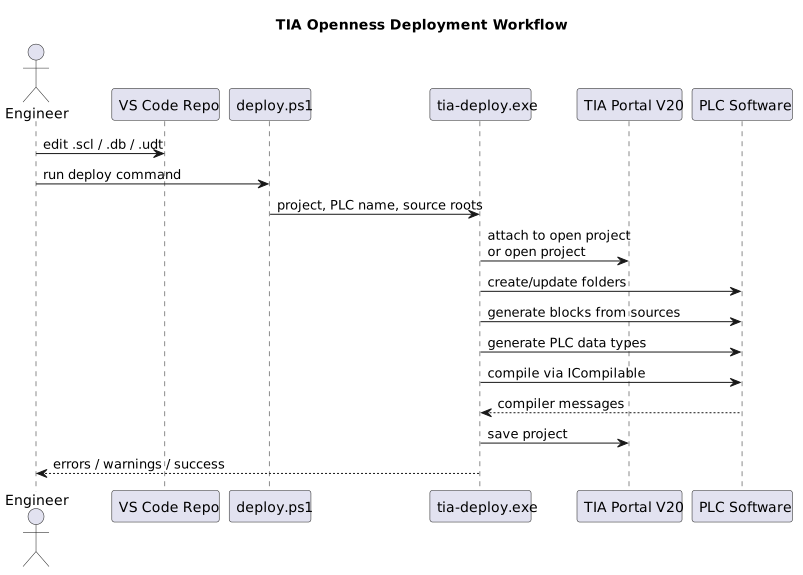
PlantUML source: deployment-workflow.puml